A website outage can mean a whole site is unavailable. But the problem for your practice may be narrower: the homepage opens while an enquiry form or booking link fails. Start with what a visitor cannot do, then give your team a clear way to report the problem, keep people informed and check the eventual repair.
This is a practical planning exercise for public website enquiries and bookings. The example is fictional; adapt the suggested plan to your own services, staff and support arrangements.
A fictional clinic: the website works, but booking does not
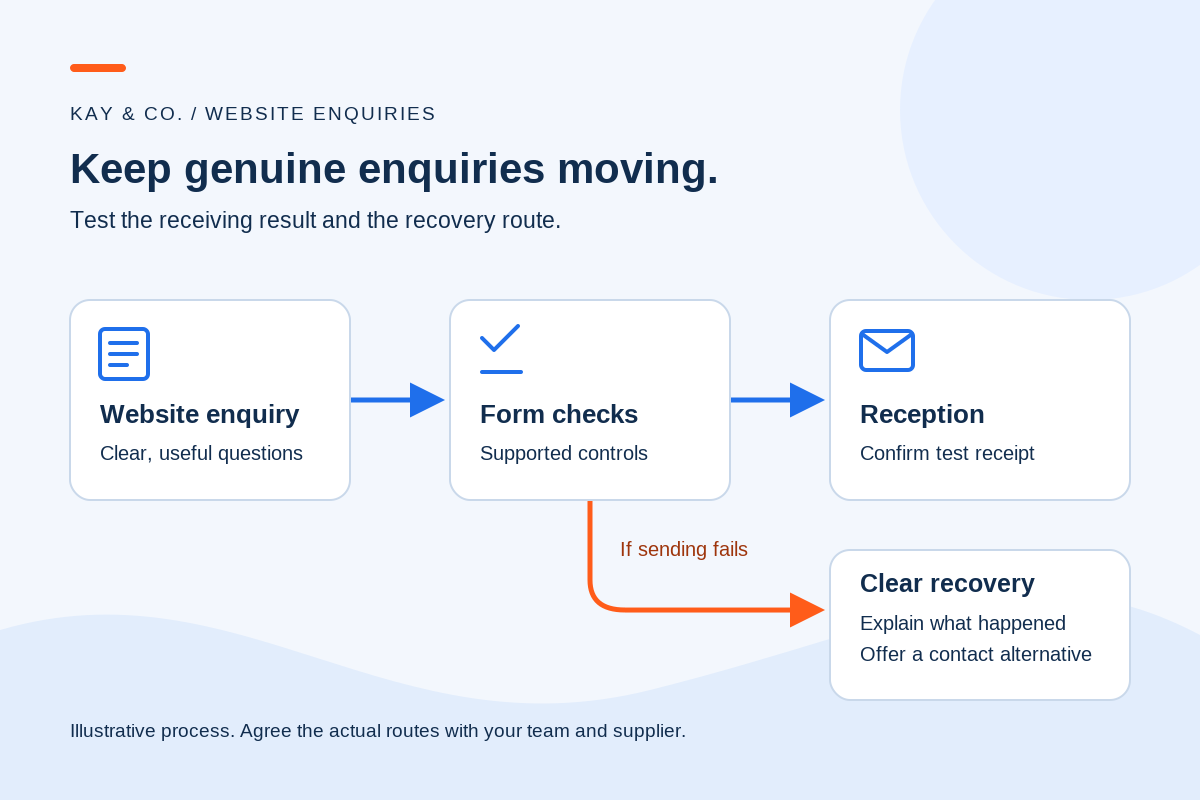
A caller tells reception that the clinic's booking button opens an error page. The receptionist can still open the homepage, so it is unclear whether this is a website fault, a booking-service fault or something affecting that caller.
The useful first response is to record the affected task and alert the right people. The practice manager coordinates the response while the website and booking suppliers investigate. Reception follows the clinic's agreed temporary process and receives updates from one person.
The manager does not need to diagnose the fault. They need to know who is investigating, what staff should do meanwhile and what must be checked before normal work resumes.
Report the visitor's problem clearly
Give the supplier a short, useful account:
- Which page or link was involved, and what was the visitor trying to do?
- What happened instead, and approximately when?
- Has an authorised staff member seen the same problem?
- Which other functions have actually been checked?
Include an appropriate screenshot if it helps, leaving out personal or confidential information. Keep observations separate from guesses: “the booking link shows an error” is more useful than asserting that a particular supplier caused it. Our guide to recognising website service failures explains this reporting step in more detail.
Decide what reception can offer meanwhile
Check whether the practice already has an agreed alternative, such as taking a callback request through its normal approved process. Establish who may activate it, which requests it can handle and where staff record what still needs attention.
A telephone number is only a useful alternative if the team can handle the affected task through it. Do not promise an appointment has been booked when staff have only recorded a request. If no workable alternative is available, say what remains unavailable and when the practice expects to provide another update.
Agree who can change the public notice and where it should appear. In the fictional example, the homepage still works, so an authorised update near the booking button could explain the temporary arrangement.
Give staff one clear contact and update
Name a coordinator and a deputy. The coordinator keeps track of the affected service, supplier contacts, decisions and next update. Suppliers remain responsible for their own technical work. If responsibility is unclear, use our guide to coordinating a website incident.
A useful staff update can follow this pattern:
Online booking is currently unavailable. The public information pages we checked are opening. Please use [the practice's agreed temporary process] for new requests. [Named role] is coordinating with our suppliers. The cause and restoration time are not yet confirmed. Our next update will be at [agreed time].
Adapt the whole message to the affected route and what has actually been checked, then replace the brackets with verified details. Promise the next communication only when someone owns it; avoid guessing a repair time. For more examples, see writing useful outage updates.

Copy this response plan into your practice notes
Complete it with reception and your suppliers before you need it. Keep it somewhere authorised staff can reach if the affected website or tool is unavailable.
| Decision | Our agreed arrangement |
|---|---|
| Affected service | Visitor task and page or link: ____ |
| Coordination | Responsible role, deputy and contact route: ____ |
| Technical help | Website and connected-service contacts, support hours and escalation route: ____ |
| Temporary process | Who approves it, what staff can offer and where work is recorded: ____ |
| Communication | Who updates staff and public notices; next update time: ____ |
| Recovery check | Who tests the original task and confirms its expected result: ____ |
| Outstanding work | Who checks completed, waiting and uncertain requests before closing the incident: ____ |
| Follow-up | Remaining repairs or process changes, owners and review date: ____ |

Check the original task before calling the problem resolved
Ask for a coordinated test of the failed journey, using fictional information and your supplier's approved test arrangements. Tell receiving staff what to expect, and agree how to avoid unintended appointments or messages and handle any test records. Check both what the visitor sees and whether the expected request or booking reaches its destination. A working homepage alone does not answer that question.
Then review work handled during the interruption. Separate completed requests, items still waiting and uncertain outcomes. Agree how these will be checked before staff or an automated process repeat them. The guide to keeping work moving during an automation outage covers this return to normal work.
Finally, record any temporary repair and remaining actions. Ask your supplier to explain unresolved issues in plain language and agree who will check the follow-up work. Use the completed plan to rehearse one fictional failure with your team. Any unanswered field gives you a concrete next question for your supplier or a starting point when you discuss your website and support arrangements with Kay & Co.